Acer Aspire Laptop RAM Upgrade Guide
Introduction
Upgrading the RAM in your Acer Aspire laptop is among the most efficient methods to boost its performance. Increased RAM capacity enables smoother multitasking, reduces lag, and allows intensive applications to function more effectively. Whether you’re facing slow responsiveness during everyday tasks or experiencing gaming interruptions, a RAM upgrade could be just what your laptop needs. This comprehensive guide will take you through everything from preparation to post-upgrade checks, ensuring a successful enhancement of your device.
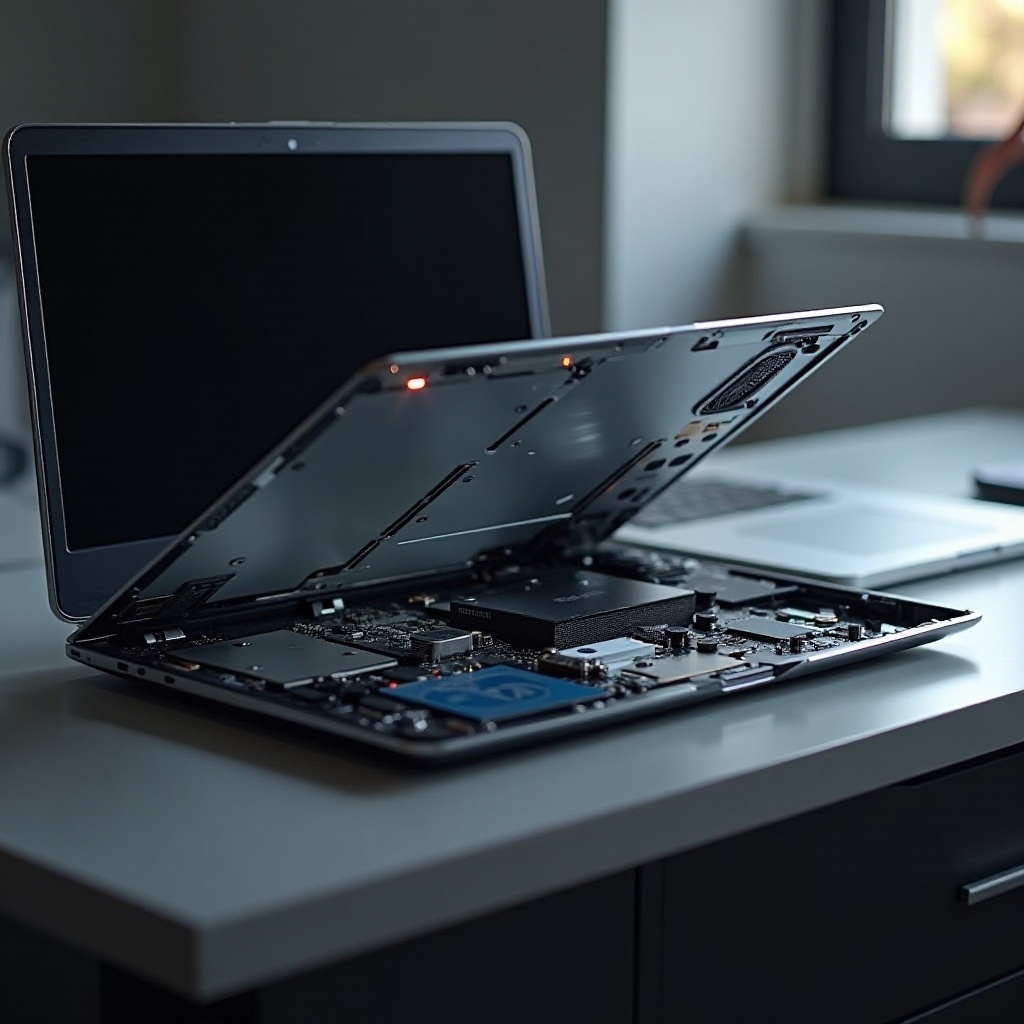
Understanding RAM and Its Importance
RAM, or Random Access Memory, plays a crucial role in computing efficiency. It temporarily holds data for active tasks, enabling swift access and responsiveness. Low RAM can force your system to use slower storage alternatives, causing delays. Upgrading the RAM in your Acer Aspire laptop provides a cost-efficient path to enhanced functionality, enabling faster speeds and better multitasking capabilities.

Preparing for Your Acer Aspire RAM Upgrade
Proper preparation is vital for a smooth RAM upgrade. Following these steps will help ensure a successful process.
Check Your Acer Aspire Model Specifications
Start by identifying your Acer Aspire laptop model, typically found on the underside of the device or in the system settings. Knowing your exact model is critical, as RAM requirements and limits differ across models.
Determine RAM Compatibility and Maximum Capacity
Once you know your model, research its compatibility requirements. Check the Acer website or your manual to determine the type of RAM suitable and the maximum capacity your device can handle. This research is essential to prevent compatibility issues.
Gather Required Tools and Materials
Ensure you have the necessary tools before you start:
– A small Phillips-head screwdriver
– Antistatic wrist strap or mat
– New RAM modules suitable for your Acer Aspire
Having the right tools on hand smoothens the upgrade process and minimizes the risk of problems.
Step-by-Step Guide to Upgrading RAM on Acer Aspire
With preparation complete, it’s time to upgrade your Acer Aspire’s RAM.
-
Back Up Your Data: To safeguard your files, back up crucial data before proceeding.
-
Power Off and Open the Laptop: Shut down your laptop and disconnect it from power sources. Place it on a soft, stable surface. Carefully remove the back panel using your screwdriver to access internal components.
-
Locate and Remove Existing RAM: Locate the RAM slots, held by small clips. Gently press to release and remove the old RAM modules.
-
Install New RAM: Align new RAM modules with slots, pressing firmly until clips lock them in place.
-
Reassemble Your Laptop: Reattach the back panel, ensuring screws and parts are fully secured.
Post-Upgrade: Verifying Successful Installation
After installation, verify the successful integration of your new RAM.
Power On and Access BIOS
Turn on your laptop and access BIOS/UEFI during startup by pressing the designated key (often Esc, F2, or Del). Ensure the new RAM is recognized here, affirming a successful upgrade.
Check System Recognition of New RAM
When the OS boots, navigate to the system information in settings. Confirm the displayed total RAM reflects your upgrade. If discrepancies exist, verify RAM seating and compatibility.
Troubleshooting Common RAM Upgrade Issues
Occasionally, issues may follow a RAM upgrade — here’s how to address them:
Laptop Does Not Boot
If your laptop fails to boot:
– Double-check the RAM seating. Ensure it’s secure.
– Verify the compatibility of RAM with your model.
– Try reinstalling the original RAM to identify defective new RAM.
System Does Not Recognize New RAM
Should recognition issues arise:
– Revisit BIOS for software-related checks. Adjust settings to force a hardware scan.
Performance Issues Post-Upgrade
For continued performance problems:
– Ensure RAM is correctly installed and locked in.
– Check for software updates affecting hardware.

Benefits of Upgrading RAM in Acer Aspire Laptops
Upgrading your RAM offers multiple advantages:
– Enhanced speed and efficiency
– Improved ability to multitask effectively
– Longer life for your system, reducing future upgrade needs
RAM enhancements not only address existing slowdowns but also help your Acer Aspire handle future computational demands with ease.
Conclusion
Upgrading the RAM in your Acer Aspire is a straightforward process offering significant performance improvements. By following this guide, you can confidently increase your laptop’s RAM and enjoy a more responsive and efficient machine. Whether for work, gaming, or general use, this upgrade ensures your Acer Aspire remains a reliable and powerful tool in your digital toolbox.
Frequently Asked Questions
What is the maximum RAM capacity for Acer Aspire laptops?
Most Acer Aspire laptops can support up to 16GB or 32GB of RAM. Always check your specific model’s specifications to confirm.
Can upgrading RAM void my laptop’s warranty?
Usually, upgrading RAM does not void the warranty, but it’s vital to check your laptop’s warranty terms as some manufacturers might seal certain components.
How often should I upgrade my laptop’s RAM?
Upgrade your RAM when you experience performance issues, frequent lags, or when your tasks exceed current memory capacity. Monitor your laptop’s performance to decide the right time for an upgrade.