How to Connect Your UE Speaker: A Step-by-Step Guide
Introduction
Efficiently connecting your UE speaker can significantly enhance your audio experience. Known for their portability and superior sound quality, UE speakers are a top choice among music enthusiasts. Whether you’re using an iOS device, Android, or computer, a seamless connection is key to enjoying uninterrupted playback. This guide provides detailed steps to help you connect and fully utilize your UE speaker’s features.

Understanding Your UE Speaker Model
Before initiating the connection process, it’s crucial to recognize your specific UE speaker model. Distinct models offer varying features and settings, which influence connectivity options. Knowing your model, whether it’s the UE Boom, MegaBoom, or another version, will ensure you follow the right steps.
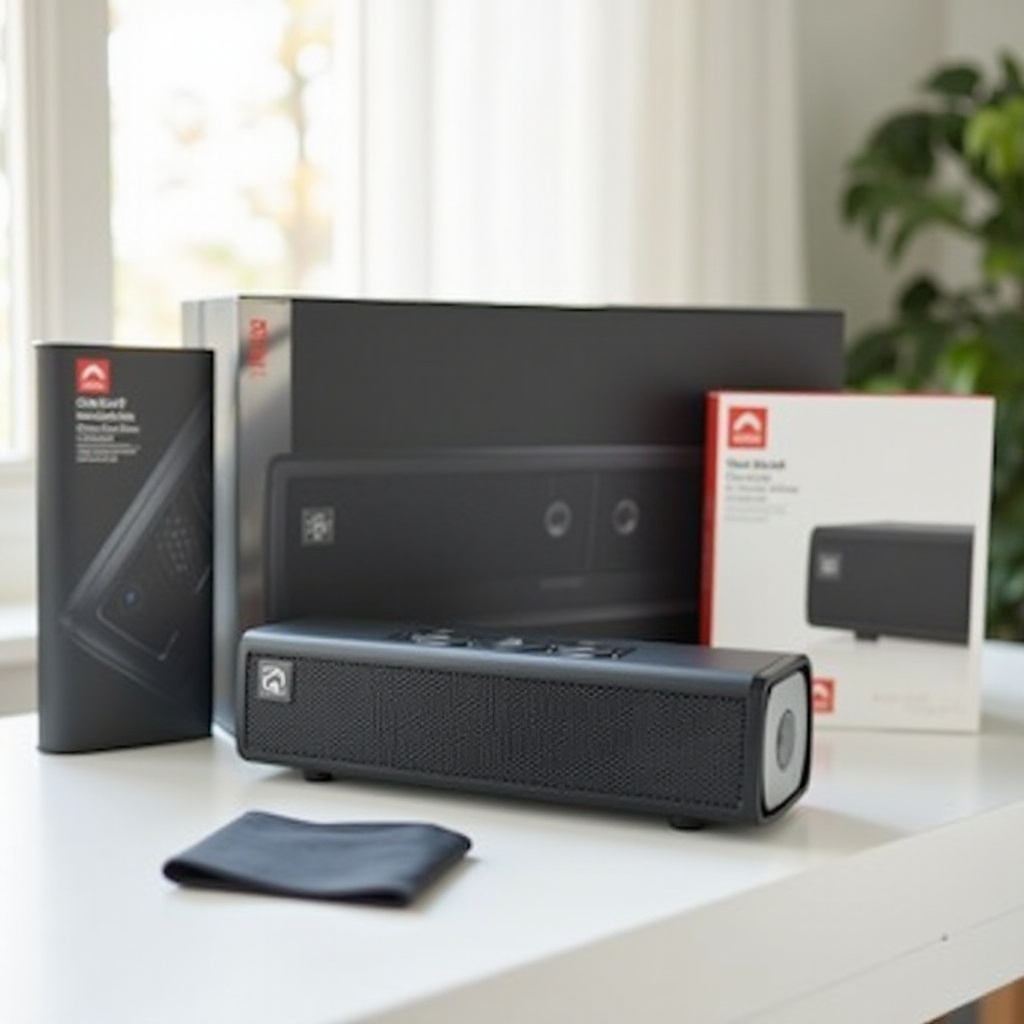
Remove your speaker from its packaging and examine it for model-specific buttons and ports. Check the model number on the device or user manual. This information is essential for accurately applying the correct connection and troubleshooting steps for your model.
Initial Setup and Unboxing
Setting up your UE speaker starts with unboxing it properly. A correct initial setup ensures the device performs optimally and lasts longer.
1. Unboxing Your UE Speaker: Carefully remove the speaker and included accessories. Ensure you have the charging cable and user manual.
2. Charging Your Speaker for the First Time: Connect the speaker to a power source using the provided cable. Allow it to fully charge, which typically takes 3-4 hours. This step is crucial for ensuring longevity and optimal performance.
Once charged, your speaker is ready for the connection process.
Connecting Your UE Speaker via Bluetooth
Bluetooth offers a convenient wireless method to connect your UE speaker. Here are steps for different devices:
1. Enabling Bluetooth on Your Device: Access your device’s settings to enable Bluetooth. Make sure your device is discoverable.
2. Pairing with iOS Devices: Open ‘Settings’ on your iPhone or iPad. Tap ‘Bluetooth,’ locate your UE speaker in the list, and select it to pair.
3. Pairing with Android Devices: Navigate to ‘Settings,’ then ‘Connections.’ Select ‘Bluetooth,’ find your UE speaker, and tap to connect.
4. Pairing with Windows and macOS Devices: Access Bluetooth settings via ‘Devices’ on Windows or ‘System Preferences’ on macOS. Find your speaker and click to connect.
Upon successful pairing, a confirmation sound will play. If pairing fails, verify your device is within range and restart the Bluetooth connection.
Alternative Connection Methods: AUX and More
In some scenarios, Bluetooth might not be ideal due to connectivity issues or device compatibility. In such cases, alternative methods like using an AUX cable can be helpful.
- Using an AUX Cable for a Wired Connection: Locate the AUX input on your speaker and insert the cable; connect the other end to your device’s headphone jack. This method is simple and doesn’t depend on wireless signals.
- Exploring NFC and Other Connection Options: Certain UE models support NFC, allowing quick pairing by tapping your device on the speaker’s NFC logo. Check for compatibility and enable NFC on your device.
These methods are beneficial in environments where Bluetooth is unreliable or for non-Bluetooth devices.
Troubleshooting Common Connectivity Issues
It’s common to encounter issues during the connection process. Understanding troubleshooting techniques can save time and prevent frustration.
- Resolving Bluetooth Connection Problems: If your speaker fails to connect, restart the device and speaker. Clear any previous pairing records on your device to reset the connection.
- Resetting Your UE Speaker to Factory Settings: A reset can often solve persistent issues. Most models reset by holding the power button and volume down button simultaneously for about 10 seconds. Consult your manual for your model’s specific instructions.
Addressing these issues ensures your speaker functions properly and reliably.
Maximizing Your UE Speaker’s Features
With your speaker connected, explore its features to enhance your audio experience further.
- Navigating the UE App for Enhanced Audio Control: Download the UE app from your device’s app store. This app offers firmware updates, customizable EQ settings, and features like talk-to-text.
- Setting Up PartyUp for Multiple Speaker Connection: For owners of multiple UE speakers, the PartyUp feature enables synchronized playback. Within the app, find PartyUp and add additional speakers.
These features allow you to go beyond basic usage and enjoy a richer audio experience.
Conclusion
A successfully connected UE speaker opens up a world of high-quality audio experiences. By understanding Bluetooth connections, utilizing wired options, and troubleshooting common problems, you can ensure uninterrupted enjoyment. Exploring additional features further enriches your listening journey.
Frequently Asked Questions
How do I put my UE speaker in pairing mode?
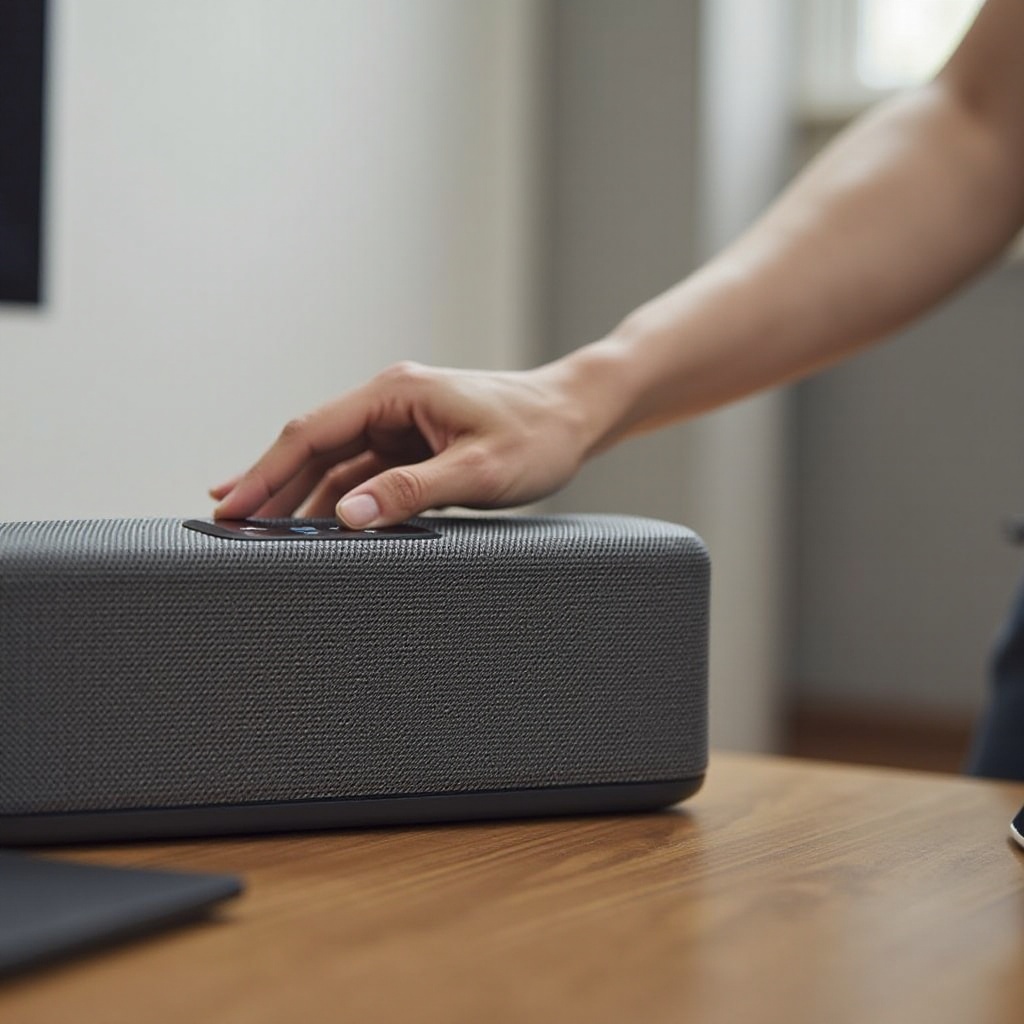
To put your UE speaker in pairing mode, turn it on and press the Bluetooth button until you hear a sound. The light will blink, indicating it’s ready to pair.
Can I connect multiple UE speakers at once?
Yes, using the PartyUp feature in the UE app, you can connect multiple speakers for synchronized playback.
What should I do if my UE speaker won’t connect?
Ensure your device’s Bluetooth is on, the speaker is in pairing mode, and both are close. Try restarting both or resetting your speaker if issues persist.