How to Connect a Controller to the Wii: A Comprehensive Guide
Introduction
The Nintendo Wii offers a unique gaming environment through its motion-sensing capabilities, making it a favorite choice for many gamers. Ensuring your controllers are connected correctly is vital for a seamless gaming experience. Here, we provide a thorough guide to help you connect various controllers to your Wii effortlessly.
Understanding the Nintendo Wii
Before delving into the connection process, grasping the basic understanding of the Wii console and identifying its compatible controllers can be massively beneficial. Whether you’re using the standard remote or exploring other options, knowing their specifics will make the process smoother.
Overview of the Wii Console
The Nintendo Wii broke new ground in the gaming world, bringing in an entirely new dynamic with its motion-sensor controllers and interactive gameplay. With various controller options like the Wii Remote, Wii Classic Controller, and even GameCube controllers, it’s crucial to know which is best suited for your needs.
Types of Compatible Controllers
- Wii Remote: The primary and most popular controller, synonymous with motion-sensing play.
- Wii Classic Controller: Best for traditional games requiring straightforward button input.
- GameCube Controller: Available for select games, providing a nostalgic experience.
- Third-Party Controllers: Numerous options are available, offering diverse functionalities.
Preparing for Connection
Proper preparation is the key to establishing a secure connection for your controllers. This includes having all necessary materials ready and ensuring they are in optimal working condition.
Gathering Necessary Materials
To get started smoothly, ensure you have:
– A fully set-up Wii console
– The desired controller(s)
– Fresh batteries for wireless options
– If needed, the owner’s manual for reference
Checking Batteries and Equipment Condition
- Begin by inserting fresh batteries into your Wii Remote or other wireless controllers.
- Check that each component is undamaged and functions as expected.
Step-by-Step Guide to Connecting Your Wii Remote
With all preparations made, you can now proceed to connect your Wii Remote. Achieving this simple setup ensures your gaming session starts without delay.
Starting the Wii Console
- Power on your Wii console by pressing the power button situated on the front panel.
- Verify that the console is correctly linked to your television.
Synchronizing the Wii Remote
- Lift the front panel flap to access the console’s sync button.
- Remove the battery cover from the Wii Remote to locate its sync button.
- Start by pressing the sync button on the console followed by the sync button on the remote.
- Wait as the player indicator LEDs stop blinking, confirming a successful connection.
Troubleshooting Common Issues
- If the sync fails initially, redo the sync setup carefully.
- Confirm battery placement and check that there are no obstructions between the console and remote.
Connecting Additional Controllers
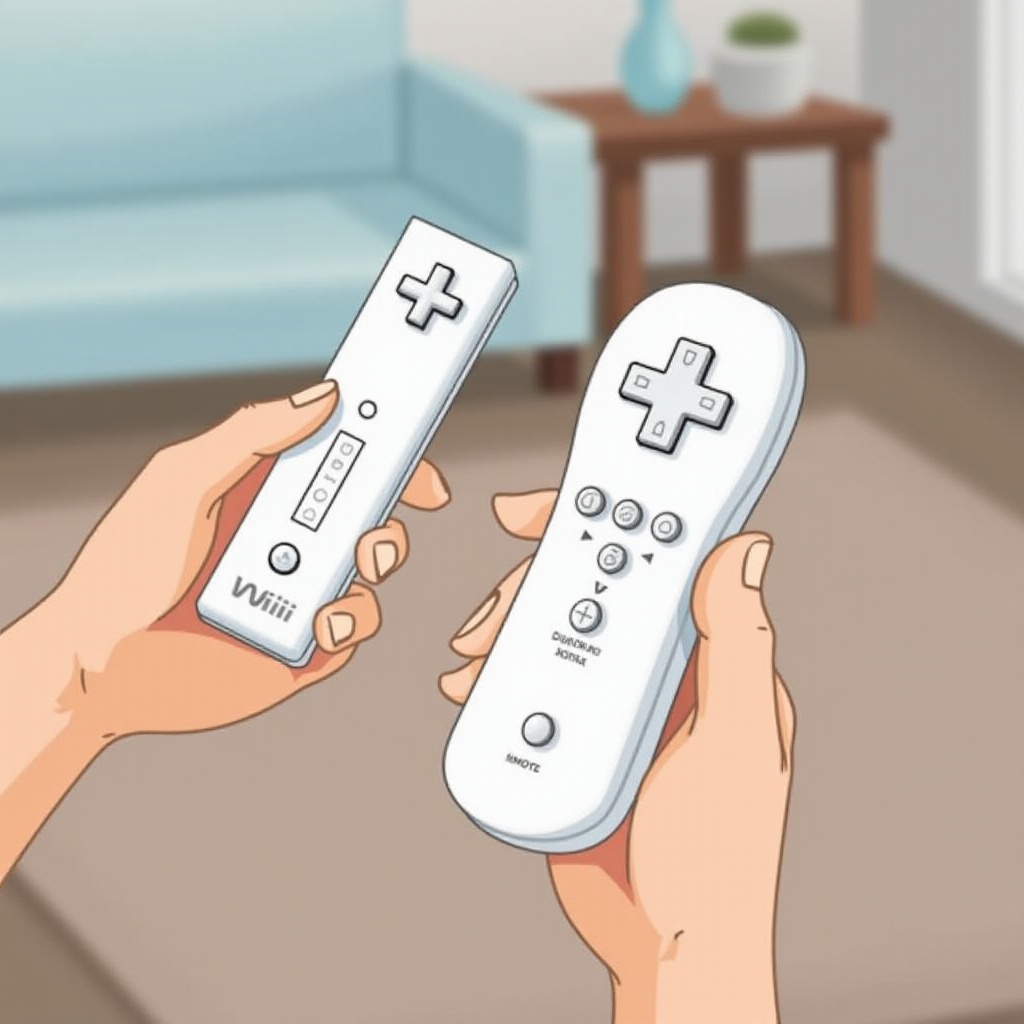
To widen gameplay adventures, connecting additional controllers can be beneficial. Having everything in working order enhances fun, ensuring everyone can participate without technical interruptions.
Connecting the Wii Classic Controller
- Connect the Classic Controller to the base of a linked Wii Remote.
- Make sure the connection is secure; if not, gently reconnect.
Using Third-Party Controllers
- Refer to the manufacturer’s guidelines for connectivity instructions.
- Many will use a similar sync process or require a USB connection.
Advanced Tips and Tricks
These tips are designed to improve and refine your overall Wii gaming experience by maintaining connection stability and prolonging controller life.
Maintaining Controller Connections
- Regularly update your console’s firmware to ensure all controllers are compatible and functioning.
- Check for software updates which might enhance system performance or controller compatibility.
Extending Battery Life
- Disable rumble and speaker features if they aren’t essential for your game.
- When finished gaming, power off the remote by holding the power button to preserve battery life.
Conclusion
By following this comprehensive guide, you should find connecting your controllers to the Nintendo Wii a straightforward process. Equipped with enhanced compatibility and functionality, your gaming sessions are sure to be enjoyable and issue-free, whether engaging solo or in multiplayer fun.
Frequently Asked Questions
How do I know if my Wii Remote is synced correctly?
The player LED light on the remote will stop blinking and remain lit, matching the player slot on the console.
Can I use a GameCube controller with the Wii?
Yes, if your Wii model has ports for a GameCube controller and your game supports it.
What should I do if my controller won’t connect to the Wii?
Ensure the console is powered on, check and replace the batteries, and retry the sync process. Contact support if issues persist.