How to Fix an Epson Printer with a Clogged Print Head
Introduction
A clogged print head can significantly disrupt your printing tasks, leading to poor print quality marked by streaks or missing colors. Knowing how to detect and resolve these issues yourself will save you time and frustration. In this guide, you’ll learn practical steps to diagnose, clean, and prevent print head clogs effectively.
Understanding Epson Print Head Clogs
Causes of Print Head Clogs
Epson printer print heads typically clog due to infrequent use, inappropriate ink types, or environmental factors like dust. When a printer is left idle, the ink can dry and block the print head nozzles. In addition, using inks not recommended by Epson can result in residue buildup, leading to clogs. Furthermore, printers exposed to dusty environments are more susceptible to this problem.
Symptoms of a Clogged Print Head
Identifying the signs of a clogged print head is crucial for timely intervention. Typical symptoms include faded prints, horizontal lines, or blank sections on printed pages. Sometimes, certain colors may not print at all. Running a diagnostic test through the printer’s software can help confirm if a clog is present. With early detection, you can address the problem before it worsens.
Preparing for Cleaning
Once you’ve identified a clogged print head, preparation is key to a successful cleaning process. Gathering the right tools ensures you’re ready for every step without interruption.
Necessary Tools and Materials
To clean your printer’s print head effectively, you’ll need:
– Distilled water or a specialized print head cleaning solution
– A lint-free cloth or paper towels
– Protective gloves to prevent ink stains
– A small tray if soaking the print head is required
Having these materials handy will make the process smoother and prevent unintended damage to the printer.
Safety Precautions
Always prioritize safety by unplugging the printer before cleaning. Use gloves to protect your hands from ink and work in a well-ventilated area, especially if using chemical cleaning solutions.
Step-by-Step Guide to Unclogging Epson Printer Print Heads
There are various methods to unclog the print head, ranging from automated cleaning cycles to manual approaches. Begin with the simplest solutions and progress to more intensive methods if necessary.
Running a Print Head Cleaning Cycle
- Access the printer’s maintenance menu via the control panel or software.
- Select ‘Clean Print Head’ and follow the prompts.
- Once the cycle completes, print a test page to check improvements.
- Repeat the cycle if needed, but avoid excessive repetition to conserve ink.
Manual Cleaning Techniques
If automatic cycles don’t resolve the clog, manual cleaning might be required:
1. Turn off the printer and open the top cover to access the print head.
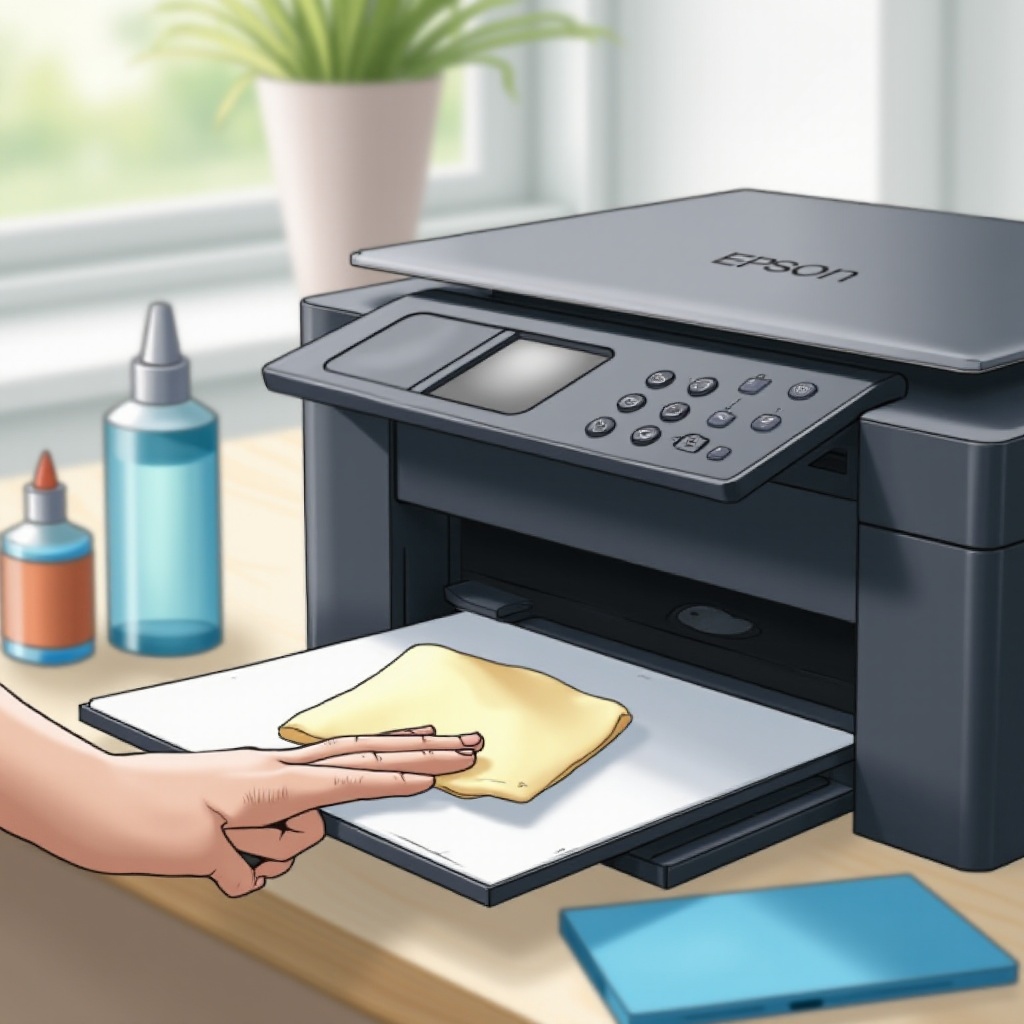
2. Moisten a lint-free cloth with distilled water or cleaning solution.
3. Gently wipe the print head to remove any ink residue or debris.
4. Let the print head dry completely before reassembly and a test print.
Deep Cleaning for Persistent Clogs
For stubborn clogs, deeper cleaning might be necessary:
1. If possible, remove the print head from the printer.
2. Soak it in a tray with a cleaning solution for several hours.
3. Rinse thoroughly with distilled water post-soak and let it dry.
4. Reinstall the print head carefully before conducting a test print.
Tips for Preventing Future Clogs
Preventive care is vital to ensure your printer remains in good working condition, thwarting future clogs and extending the life of your printer.
Regular Maintenance Practices
- Conduct regular printing: Printing a page at least weekly helps keep ink moving through the nozzles, reducing the risk of drying.
- Update printer software: Keep your printer drivers up-to-date to maintain proper functionality.
Proper Printer Use and Storage
- Avoid placing the printer in dusty or extreme temperature areas.
- Always use genuine Epson ink cartridges to prevent compatibility issues.
Conclusion
By understanding and addressing print head clogs promptly, you can maintain your printer’s high-quality output and long-term reliability. Regularly applying the described maintenance practices will help prevent future clogs, keeping your Epson printer performing optimally for all your printing needs.
Frequently Asked Questions
How often should I clean my Epson printer’s print head?
Regular cleaning every few months, or when print quality declines, can help maintain optimal performance.
Can I use regular tap water for cleaning the print head?
It is advisable to use distilled water, as tap water contains minerals that could damage the print head.
What should I do if the print head remains clogged after cleaning?
If the problem persists, consider seeking professional repair services to evaluate and resolve the issue.