Troubleshooting USB-C Port Issues on Your MacBook Pro: A Comprehensive Guide
Introduction
The functionality of the USB-C port is critical for MacBook Pro users, providing the cornerstone for efficient connectivity with various devices. When this critical component malfunctions, it disrupts productivity and becomes a source of frustration. This comprehensive guide offers effective troubleshooting steps to address USB-C port issues on your MacBook Pro, focusing on both hardware and software solutions. By following the provided strategies, you can diagnose and fix the problems efficiently.
Understanding USB-C Port Problems
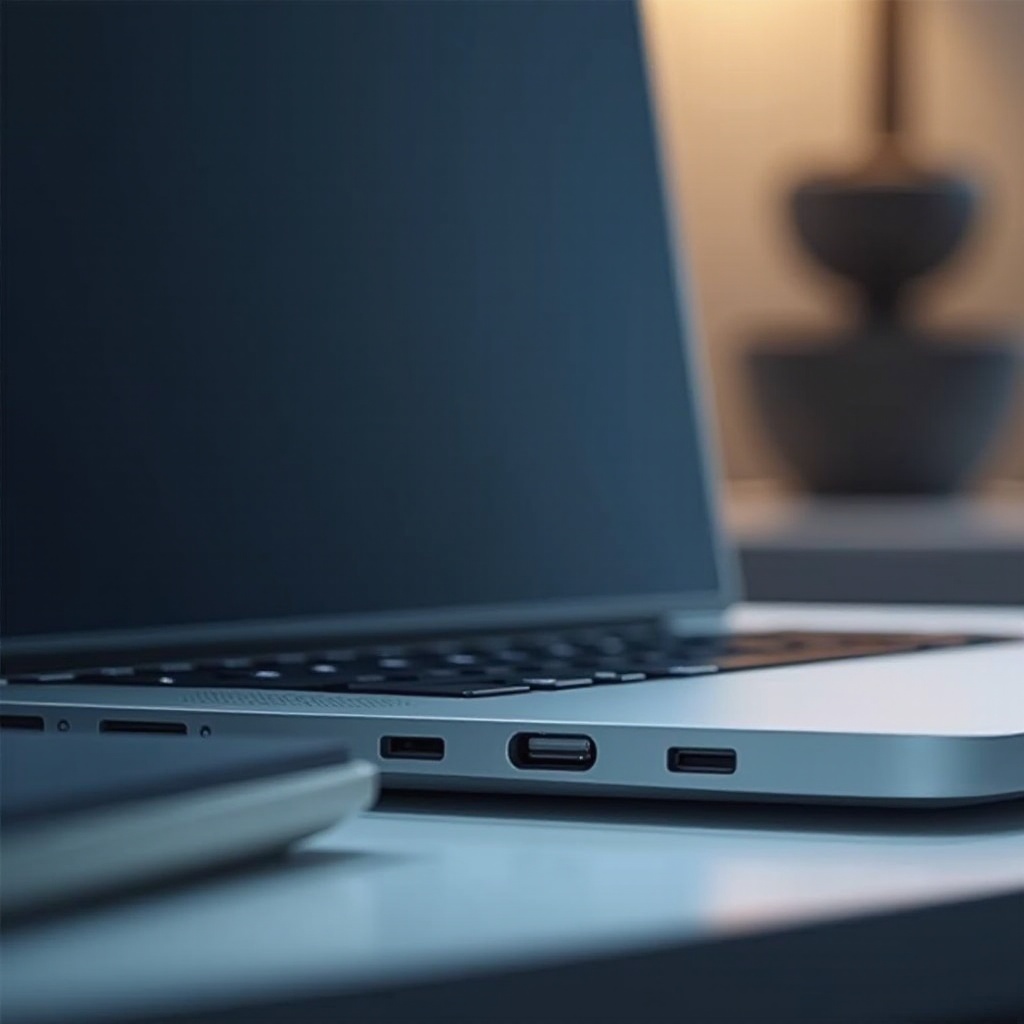
Before diving into solutions, it’s important to recognize the common symptoms associated with USB-C port problems on a MacBook Pro. Identifying whether the issue stems from hardware or software will guide you in choosing the appropriate solution.
- Common Symptoms of USB-C Port Failure:
- Devices not recognized or failing to charge.
- Intermittent connection or power issues.
-
Visible physical damage or obstruction in the port.
-
Differentiating Hardware and Software Issues:
- Hardware problems often involve visible damage or persistent failures.
- Software issues might be due to outdated drivers or incorrect system settings.
Understanding these symptoms allows you to systematically address the next set of potential causes via initial diagnostic checks.
Initial Steps to Diagnose the Problem
Before moving to advanced solutions, start with basic diagnostics to potentially resolve USB-C port issues. Often, simple checks can clear up many problems that superficially seem severe.
- Checking Physical Connections and Cables:
- Ensure all cables are securely connected.
-
Test the connection with different USB-C cables to rule out cable-specific issues.
-
Restarting Your MacBook Pro:
- A simple restart can refresh system settings and eliminate temporary glitches.
- Shut down completely and restart your device to reset minor software errors.
If these initial troubleshooting steps don’t resolve the issue, it’s time to investigate potential software-related problems.

Software Solutions for USB-C Port Issues
Moving forward, addressing software-related problems could restore your USB-C port’s functionality. System updates and reset processes are key to resolving software conflicts.
- Updating macOS to the Latest Version:
- Check for and install any necessary system updates via System Preferences > Software Update.
-
Updates can resolve known bugs and improve system compatibility with peripherals.
-
Resetting the System Management Controller (SMC):
- The SMC is responsible for many hardware functions, and a reset can address issues.
-
Shut down the MacBook, press Shift + Control + Option + Power for 10 seconds, then restart.
-
Using Disk Utility for Troubleshooting:
- Use Disk Utility to check and repair disk errors that might affect USB-C functionality.
- Open Disk Utility from Applications > Utilities and run ‘First Aid’ on your disk.
If software solutions don’t resolve the issue, it’s time to evaluate potential hardware problems.

Hardware Troubleshooting Techniques
In cases where software solutions are ineffective, the issue could be hardware-related. Proper inspection and cleaning are crucial for maintaining USB-C port functionality.
- Inspecting and Cleaning the USB-C Ports:
- Shine a light into the USB-C port to check for dust or debris that may be blocking the connection.
-
Use a soft brush or cotton swab to clean the port carefully, taking care not to damage the connectors.
-
Testing with Different Devices and Cables:
- Connect different devices or use different cables to test the functionality of the port.
- Determine whether the problem is limited to specific peripherals or the port itself.
Conducting these hardware troubleshooting steps can reveal any physical defects. If the port still isn’t functioning, it may require more advanced diagnostic approaches.
Advanced Troubleshooting Methods
If simpler methods fail to solve the problem, consider advanced techniques involving system-level diagnostics to identify unresolved issues.
- Safe Mode and Terminal Commands:
- Boot your MacBook into Safe Mode to perform system checks and limit startup apps.
- Restart and hold the Shift key until the login window appears. Test the port functionality.
-
Use Terminal commands to refresh system caches or reset settings that could be affecting USB-C functionality.
-
Using Apple Diagnostics:
- Run Apple Diagnostics to identify possible hardware issues.
- Restart the MacBook and hold the D key to initiate the diagnostics process.
These advanced steps are designed for deeper system assessments. Should problems persist, it might be beneficial to consider preventive measures or seek professional consultation.
Preventive Measures for Future Issues
To mitigate the risk of future USB-C problems, it is prudent to adopt preventive strategies that maintain port functionality. Proper care extends device longevity and ensures consistent performance.
- Tips to Maintain USB-C Ports:
- Handle connectors gently to prevent undue strain on ports and cables.
-
Regularly clean the USB-C ports to prevent dust accumulation.
-
Recommended Accessories for Port Protection:
- Invest in high-quality, certified cables and adapters to ensure compatibility and longevity.
- Use USB-C dust plugs to safeguard unused ports from dust and moisture.
Implementing these preventive steps boosts the durability of your MacBook Pro’s USB-C ports. If all else fails, consulting Apple Support for continued problems is advisable, as further assistance may be required.
Conclusion
Functional USB-C ports are vital for maintaining productivity on a MacBook Pro. By understanding the common symptoms and following a structured troubleshooting process, many issues can be resolved independently. If persistent problems occur, professional assistance from Apple Support remains a reliable option to prevent further complications.
Frequently Asked Questions
Why is my MacBook Pro not recognizing USB-C devices?
Possible reasons include incorrect settings, faulty cables, or damaged ports. Following troubleshooting steps can help diagnose and resolve the issue.
Can a non-functional USB-C port be fixed at home?
Minor issues can often be fixed at home through diagnostic and software updates. Persistent hardware problems may require professional repair.
When should I seek professional repair services?
If troubleshooting steps fail and the port remains non-functional, it is advisable to seek professional repair to prevent further damage.