How to Diagnose and Repair a Broken Xbox One
Introduction
Experiencing issues with your Xbox One can be incredibly frustrating, especially when eager to dive into a game. From minor glitches to more serious hardware failures, the reasons behind a broken Xbox One vary. This guide will help you navigate the process of diagnosing and repairing your console, ensuring you’re back to enjoying your gaming sessions in no time.
Identifying Common Problems
Understanding the symptoms is the first step in troubleshooting a malfunctioning Xbox One. Once you know what to look for, you can target the problem more effectively.
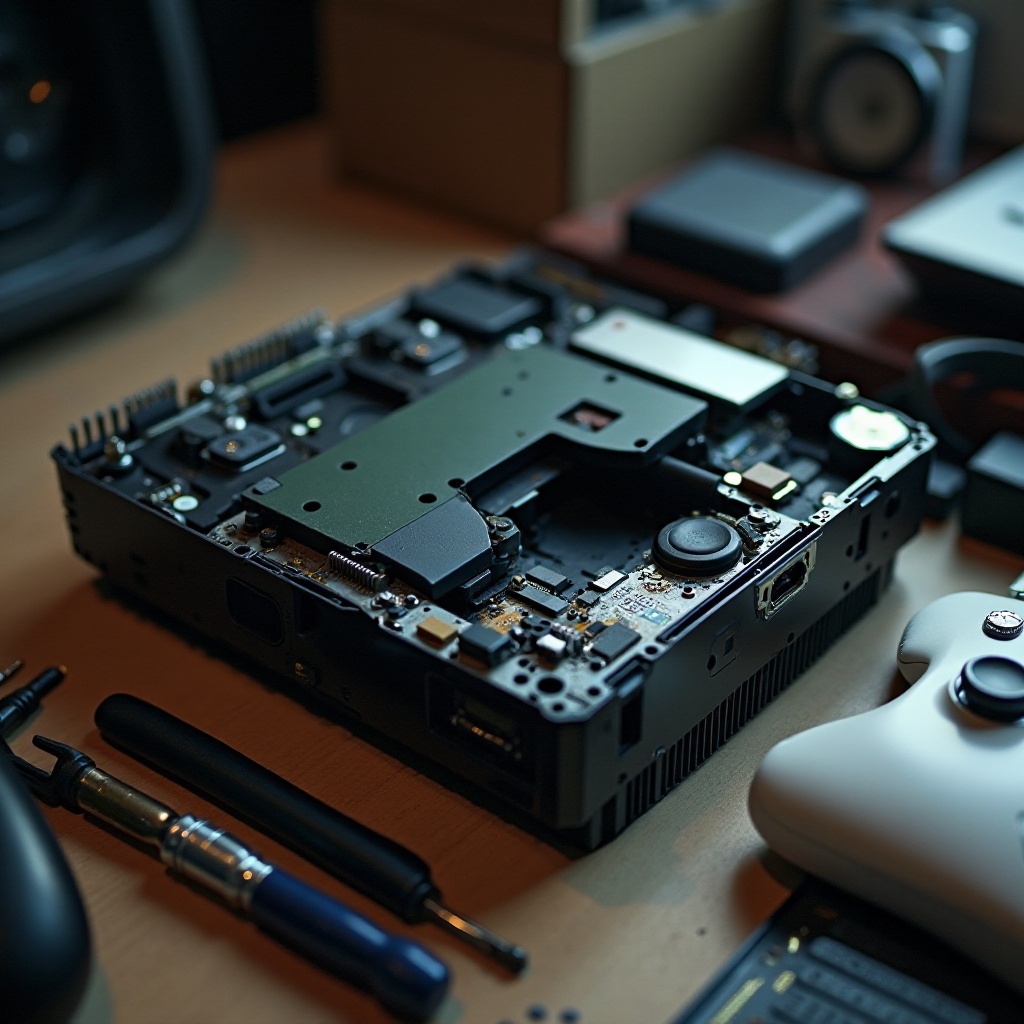
- Physical Damage: Inspect your console for visible signs of damage, such as scratches, dents, or cracks on the outer casing and accessories. Also, check if there is any indication of overheating, like discoloration on the power brick or a burnt smell.
- Software Glitches: Monitor your Xbox for unusual behaviors, such as frequent software crashes, system freezes, or persistent error messages like E100 or E200. These can often indicate underlying software or hardware issues.
- Overheating Issues: If your console becomes excessively hot, it could lead to unexpected shutdowns. Ensure the Xbox One is positioned in a well-ventilated area, free of dust or anything blocking the exhaust ports.
Recognizing these problems is essential for determining the necessary repairs and avoiding further damage.
Basic Troubleshooting Steps
Before moving to more advanced repair techniques, start with basic troubleshooting. These simple steps can often resolve common issues effectively.
-
Restart Your Console: Hold the Xbox button on the front of the console for 10 seconds, which will power down the system. Unplug the power for a minute before restarting to clear any temporary glitches.
-
Check Power Supply and Cables: Inspect the power supply and cables for damage. Ensure they are connected firmly and that the LED indicator on the power brick is glowing correctly. If the LED is off, consider replacing the power supply.
-
HDMI Connection: Verify that your HDMI cable is securely connected to both the Xbox and the TV. Try using a different port or swapping cables if you’re experiencing display issues.
Once these steps are completed, test your console to see if the issue persists. If the problems continue, more advanced methods may be required.
Advanced Repair Techniques
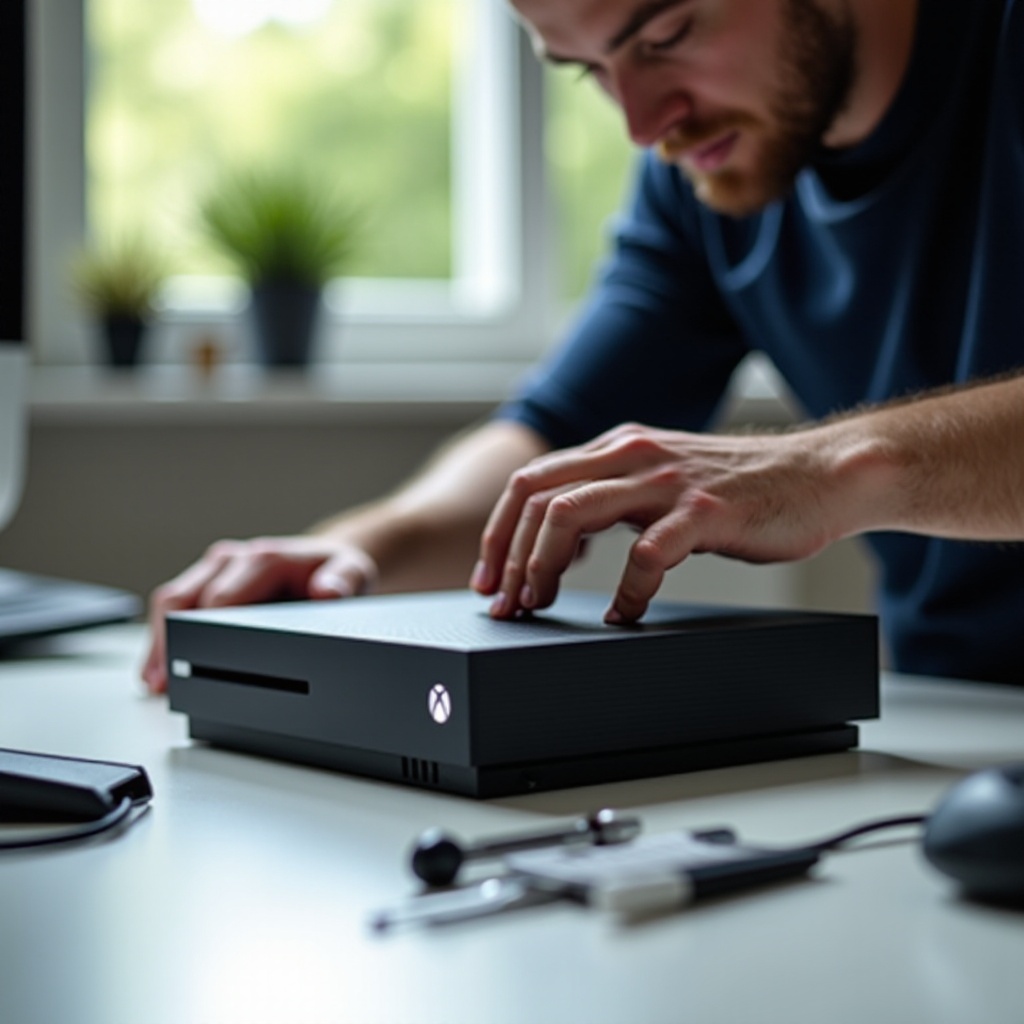
When basic troubleshooting doesn’t resolve your Xbox One’s problems, you may need to employ more advanced repair techniques. Approach these methods cautiously.
-
Hard and Factory Resets: Sometimes, resetting your system can resolve persistent software issues. To perform a hard reset, hold down the power button for 10 seconds. For a factory reset, go to Settings > System > Console Info > Reset Console, but remember that this will erase your data, so back up your information first.
-
Disk Drive Repairs: If your console fails to read discs, inspect the disk drive for dust or objects blocking its operation. Use a can of compressed air to gently clean the drive and clear any obstructions.
-
Cooling System Maintenance: Regularly clean your console’s vents using a soft brush or vacuum to maintain proper airflow and prevent overheating. Consider using additional cooling solutions, like external fans, to help keep the system cool.
These steps can help address more severe issues, but always consider warranty implications when performing DIY repairs.
When to Seek Professional Repair
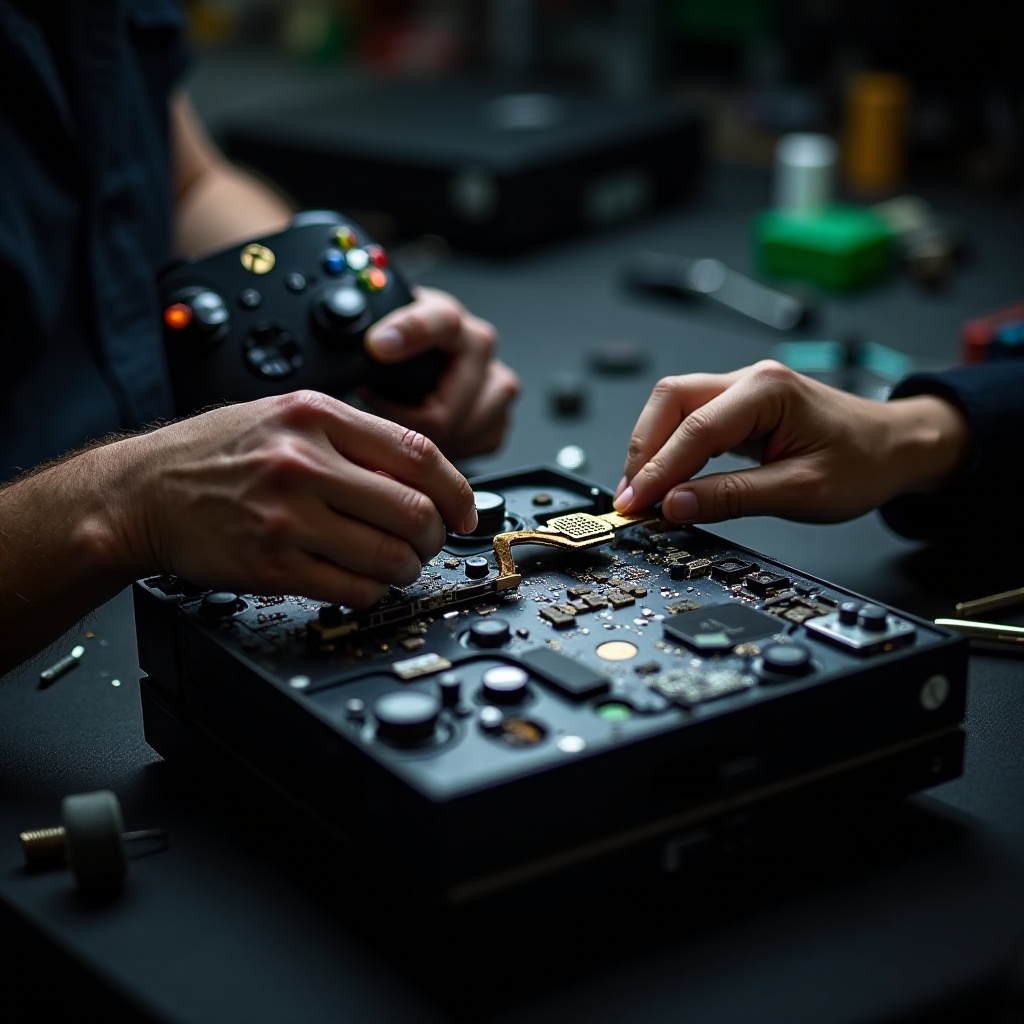
If do-it-yourself efforts fail to resolve the problem, professional repair might be your best option. Knowing when to consult an expert can save time and prevent further damage.
-
Signs You Need Help: If you experience persistent hardware failures, failed DIY repair attempts, or error codes that remain unresolved, it’s likely time to seek professional assistance.
-
Choosing a Repair Service: Search for repair centers with positive customer reviews and testimonials. Ensure the service provider specializes in Xbox repairs and offers warranties on their work. A professional touch can often ensure a longer lifespan for your device and restore your gaming experience efficiently.
Conclusion
Repairing a broken Xbox One can seem daunting, but with the right guidance, it’s often manageable. From basic troubleshooting to advanced repair techniques, there are multiple avenues you can take. Remember, should these efforts not resolve your issues, professional repair is a reliable fallback. This approach not only extends your console’s life but ensures you’re continuously enjoying the gaming experiences you love.
Frequently Asked Questions
What should I do if my Xbox One won’t turn on?
Check your power connection, cables, and the power brick’s LED. Try a different power supply if needed.
How can I tell if the power supply is faulty?
A non-lit LED on your power brick typically indicates a faulty power supply that might need replacing.
Is it worth repairing an old Xbox One or should I buy a new one?
Consider repair costs, the age of your console, and new model prices. Repairs often extend the device’s life if economically viable.