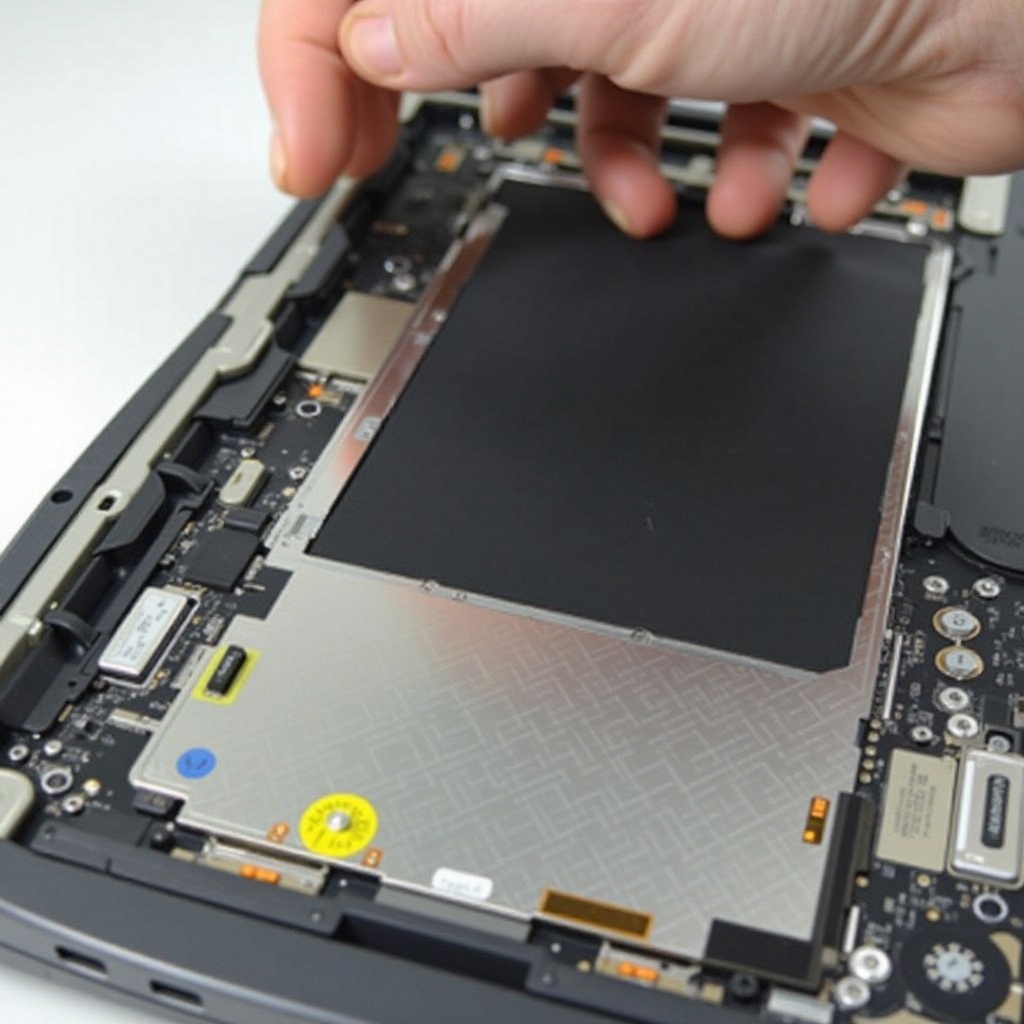
How to Get to BIOS on Acer Laptop: A Comprehensive Guide
Introduction
Accessing the BIOS on your Acer laptop is essential for effectively managing hardware settings, boot configurations, and system diagnostics. Although it may seem daunting, especially for those who aren’t tech-savvy, understanding how to access and navigate the BIOS gives you greater control over your device’s performance and security. In this guide, we’ll explore the steps required to enter the BIOS on your Acer laptop and see how these settings contribute to an enhanced computing experience.

Understanding BIOS and Its Importance
Before accessing the BIOS, it’s vital to grasp what it is and why it’s important. BIOS, or Basic Input/Output System, is a program pre-installed on your laptop’s motherboard. It’s the first software that activates when you boot up your system, initializing hardware components to ensure your operating system loads properly.
– What is BIOS? BIOS is in charge of starting up the system and managing data flow between your device’s operating system and attached components like the hard disk, video card, keyboard, and mouse.
– Difference between BIOS and UEFI: While BIOS is the traditional firmware interface, many modern systems employ UEFI (Unified Extensible Firmware Interface), offering additional features like more extensive drive and memory support, faster boot times, and graphical user interfaces.
– Why you might need to enter BIOS on an Acer laptop: Entering BIOS can be necessary for changing boot orders, troubleshooting hardware issues, or enabling advanced features like virtualization. Power users sometimes adjust BIOS settings to maximize hardware performance.
Understanding these basics of BIOS sets the scene for successfully accessing and adjusting these settings on your Acer laptop.
Preparing to Access BIOS on Your Acer Laptop
Proper preparation can minimize potential issues during BIOS access:
1. Checking your Acer laptop model: Knowing your specific Acer model helps determine the correct key to press for BIOS access as the key may differ across different series like Aspire, Swift, or Predator.
2. Updating necessary drivers and firmware: Ensure that all system drivers and BIOS/firmware updates are current. Manufacturers release updates to fix bugs, improve performance, and introduce new features.
3. Backing up important data: Before making any BIOS changes, back up essential files. Adjusting BIOS settings can affect system stability, and having a backup protects against data loss should you need to restore your system.
These preparatory actions create a solid foundation for a smooth and safe entry into the BIOS on your Acer laptop.
How to Access BIOS on Acer Laptops
With preparation complete, follow these steps to enter BIOS:
1. Using the F2 Key: Standard Method:
– Restart your Acer laptop.
– As the Acer logo appears, press the F2 key repeatedly until the BIOS setup utility screen shows up. Older models may use the Delete key instead.
2. Accessing BIOS from Windows 10/11:
– Navigate to Settings > Update & Security > Recovery.
– Under ‘Advanced startup,’ click ‘Restart now.
– After your PC restarts, go to Troubleshoot > Advanced options > UEFI Firmware Settings, then click ‘Restart’ to enter BIOS.
3. Alternative Methods: F12, Delete, and Other Keys: Depending on the model, keys such as F12, Esc, or Fn + Tab might be required. Check your Acer’s manual or on-screen prompts during startup for precise directions.
Successfully accessing the BIOS allows you to customize your system’s settings for optimal performance based on your specific needs.
Troubleshooting Common BIOS Access Issues
Sometimes accessing the BIOS doesn’t go smoothly. Here’s how to troubleshoot:
– What to do if the BIOS key isn’t responding:
– Make sure the laptop is fully powered off before trying again.
– Remove peripherals like USBs or external drives that might interfere with startup.
– Try pressing the key at various times during boot-up to see if timing affects entry.
– Resolving hardware-related access problems:
– Ensure all hardware connections are tight; loose connections might hinder booting.
– Use Windows Troubleshooter to identify specific error messages.
– BIOS access issues in dual-boot systems: Dual-boot setups can complicate BIOS entry. Ensure the default boot loader is correctly configured, or temporarily disable one OS to facilitate access.
With this troubleshooting handbook, most BIOS access problems can be promptly resolved, enabling smooth entry into your system’s core settings.

Best Practices and Safety Tips for BIOS Configuration
When inside the BIOS, follow these best practices for safe and effective changes:
– Recommended settings for most users: Keep the boot order up-to-date and enable secure boot if available to guard against unauthorized applications.
– How to recover from incorrect BIOS settings:
– Use the BIOS setup utility to restore defaults if you experience stability issues post-adjustment.
– Some Acer models have a reset jumper or button on the motherboard for a physical BIOS reset.
Understanding and implementing these practices ensures you manage BIOS settings confidently and address any issues efficiently.
Conclusion
Accessing the BIOS on your Acer laptop need not be an intimidating task. Following the comprehensive instructions outlined in this guide, you now understand how to prepare for, access, and carefully adjust BIOS settings. With some practice and the mentioned support resources, you’ll be able to effectively manage your laptop’s crucial system settings, enhancing your Acer experience.
Frequently Asked Questions
What should I do if my Acer laptop doesn’t respond when I press the BIOS key?
If your laptop isn’t responding, make sure it is fully off before retrying. Removing peripherals may also help.
Can accessing BIOS on my Acer laptop harm my device?
Entering BIOS itself won’t harm your laptop, but altering settings without understanding their impact may cause system instability.
How can I reset BIOS settings on my Acer laptop?
You can reset BIOS settings by choosing ‘Restore Defaults’ in the BIOS menu or using a reset button on some models.